

CAT Operator Assistant Dashboard
Product design | Dashboard design
2026
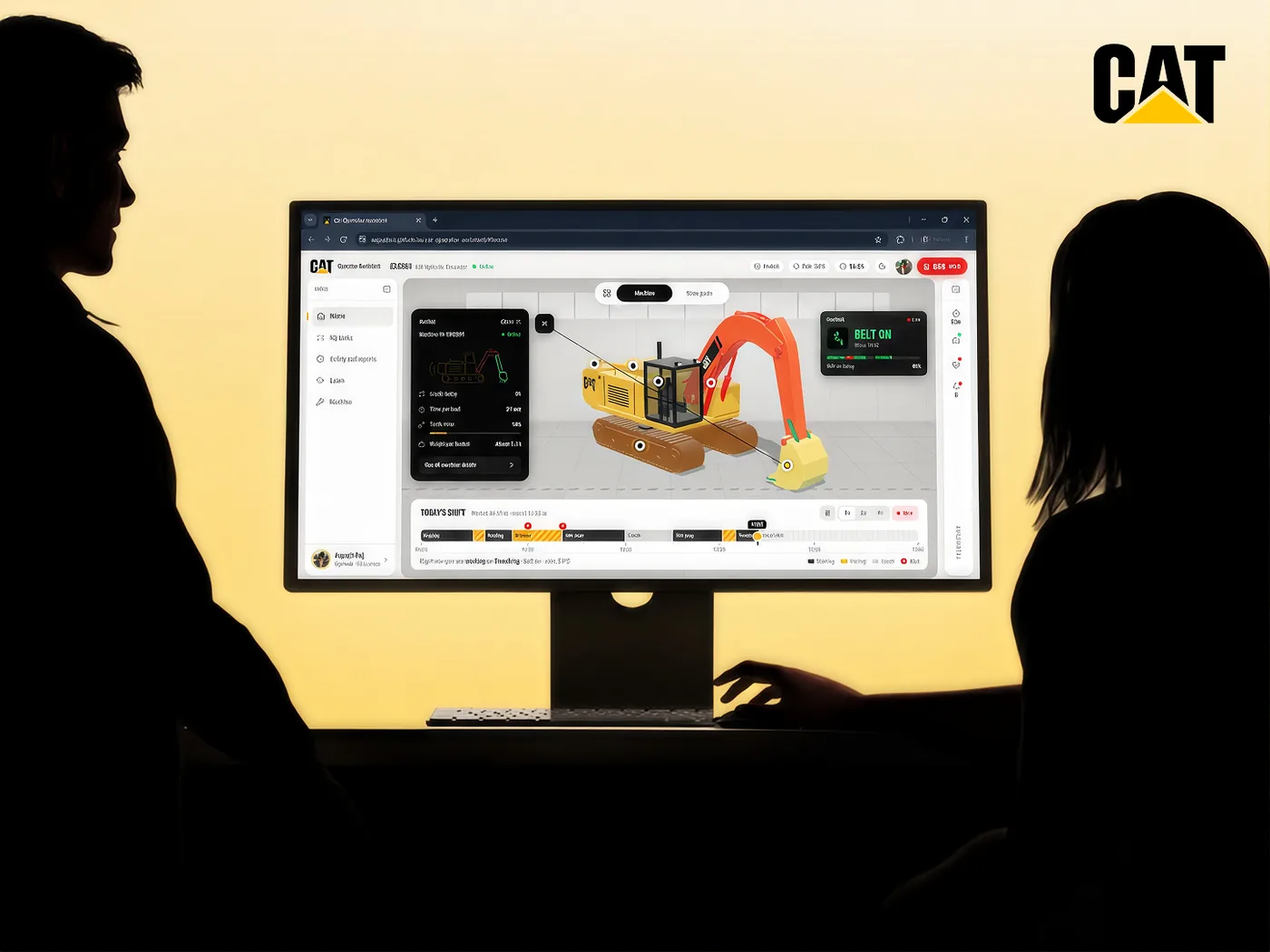
CAT Operator Assistant is a concept cab tablet app for Caterpillar excavator operators and their fleet managers. It turns machine telematics, the data the excavator already records, and the day's job list into five glanceable screens, so an operator can check pace, safety and machine health without leaving the seat.
Services:
Challenge:
An excavator operator makes dozens of small decisions an hour with very little information. The day's jobs live in their head. The machine's real condition sits in gauges and fault codes nobody reads until something breaks. Training happens when a supervisor finds the time.
Role:
Product Designer · Front-end
(01)
(About)
An excavator operator works with scattered information, and nothing in the cab says whether they are behind, working safely, or wearing out the machine.
CAT Operator Assistant is a concept operator assistant for Caterpillar excavators. It covers a daily task dashboard, safety, training, abnormal behavior detection and task-time estimation. It does all of this without adding any new hardware to the machine.
It is a static web app in plain HTML, CSS and JavaScript with no framework, so it loads fast even on a weak site connection. The excavator is a 3D model generated in code with Three.js, so there is no heavy model file to download.
(02)
(Details)
- Type
- Conceptual project for Caterpillar
- Stack
- Vanilla HTML, CSS and JS, procedural Three.js (r128)
- 3D
- Excavator built in code, no downloaded assets
- Repo
- github.com/Aayushvz/cat-operator-assistant
(Challenge)
An excavator operator makes dozens of small decisions an hour with very little information. The day's jobs live in their head. The machine's real condition sits in gauges and fault codes nobody reads until something breaks. Training happens when a supervisor finds the time.
So a new operator can't tell whether they are behind schedule, working safely, or pushing the machine toward a breakdown.
The fleet manager sees even less. A seatbelt violation, a near miss or a job running two hours late reaches them after the shift, on paper or by phone. By then the pattern behind it is gone.
(Solution)
Design for the operator first, then the manager. Most machine dashboards start as a chart-heavy admin panel with a small operator view added later. This one starts in the cab, with three questions an operator asks all shift: am I on pace, is the machine safe, and what's next?
Each screen answers one question at a glance. Status uses a simple red, amber and green scale, the most important number is always the largest thing on screen, and every button is sized for a gloved hand.
The fleet view reads the same data, read-only and across every machine on site. One data model, two ways to look at it.
Every number is honest about its source. The four telemetry rows and five completed tasks in the dataset are used exactly as given. Part health scores, proximity events and habit trends are labeled sample data, never shown as live sensor readings.
(03)
(Start of shift)
The sign-in doubles as a pre-start safety check, so a shift cannot begin in an unsafe state.
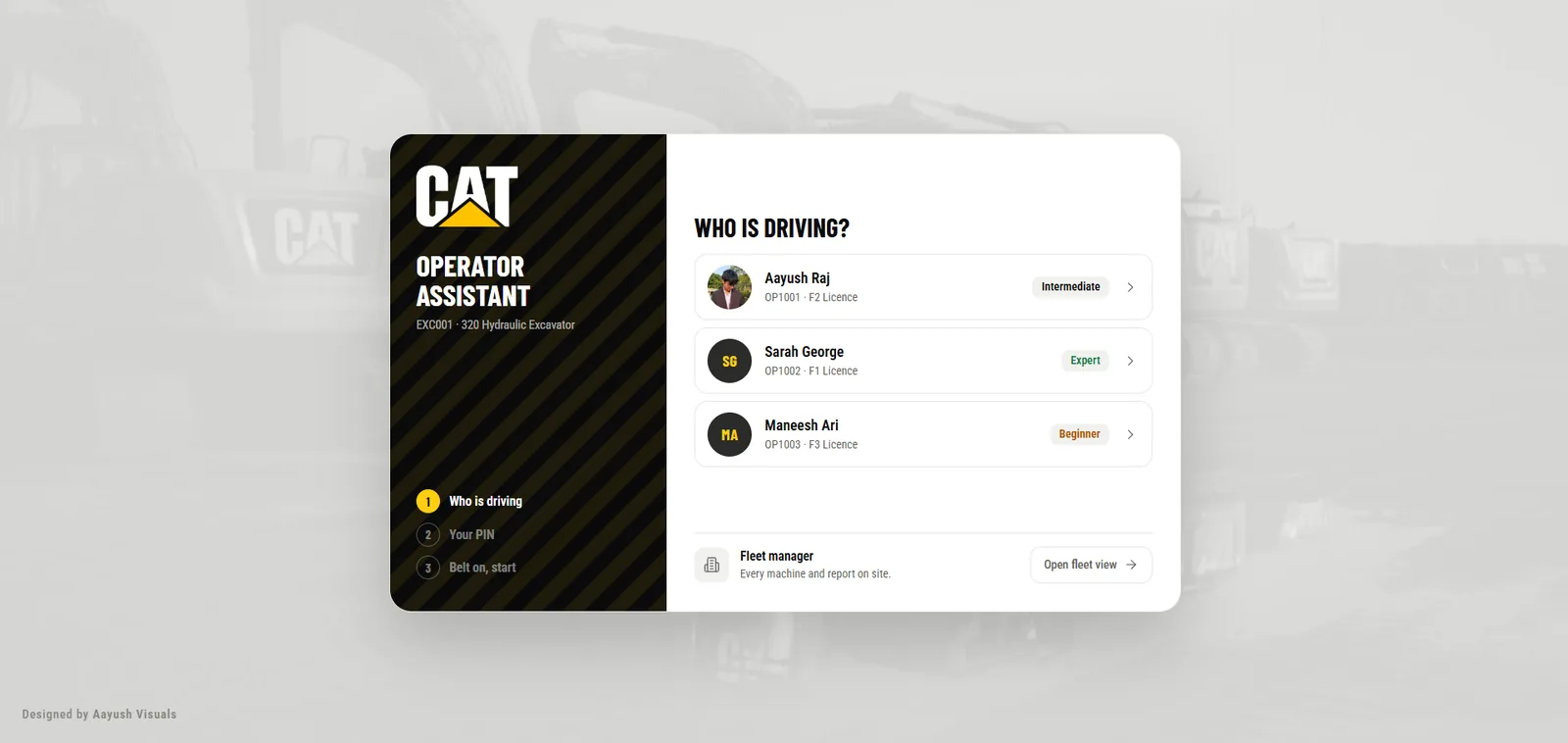
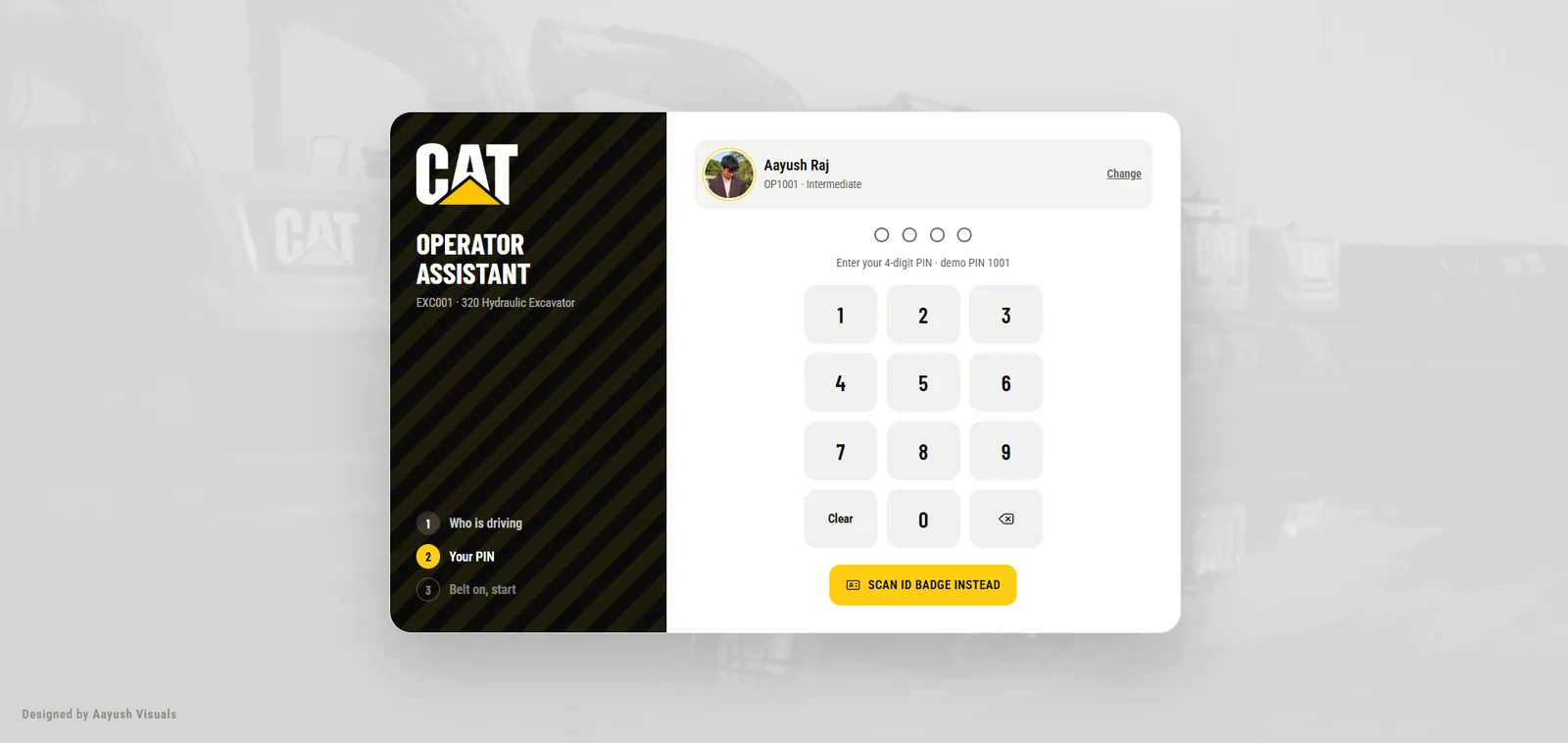
Operator sign-in in three steps
The operator picks their profile from three skill levels, beginner to expert, then confirms with a PIN or a badge scan.
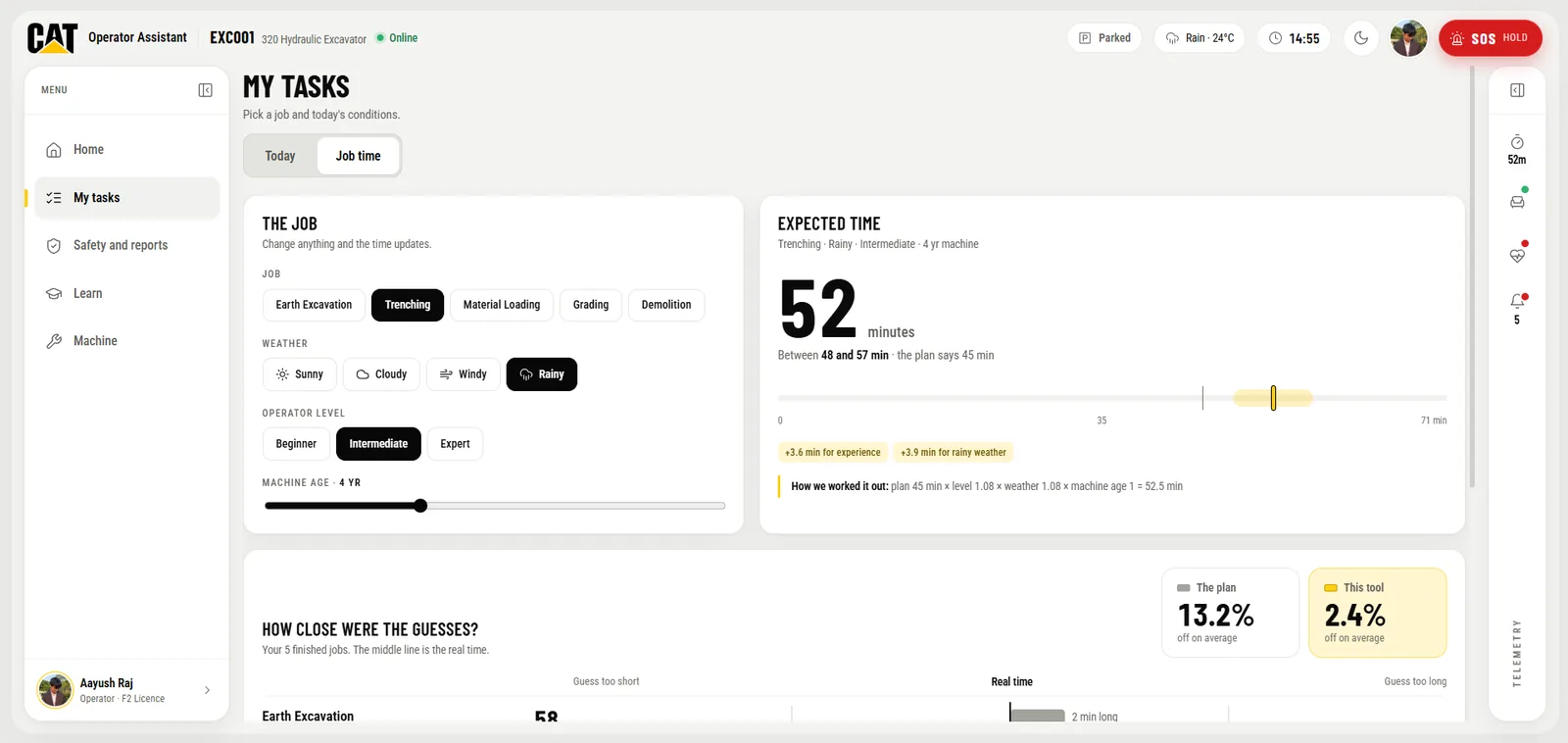
The skill level matters. It sets the expected time for every job that day, so estimates match the person in the seat.
Seatbelt interlock
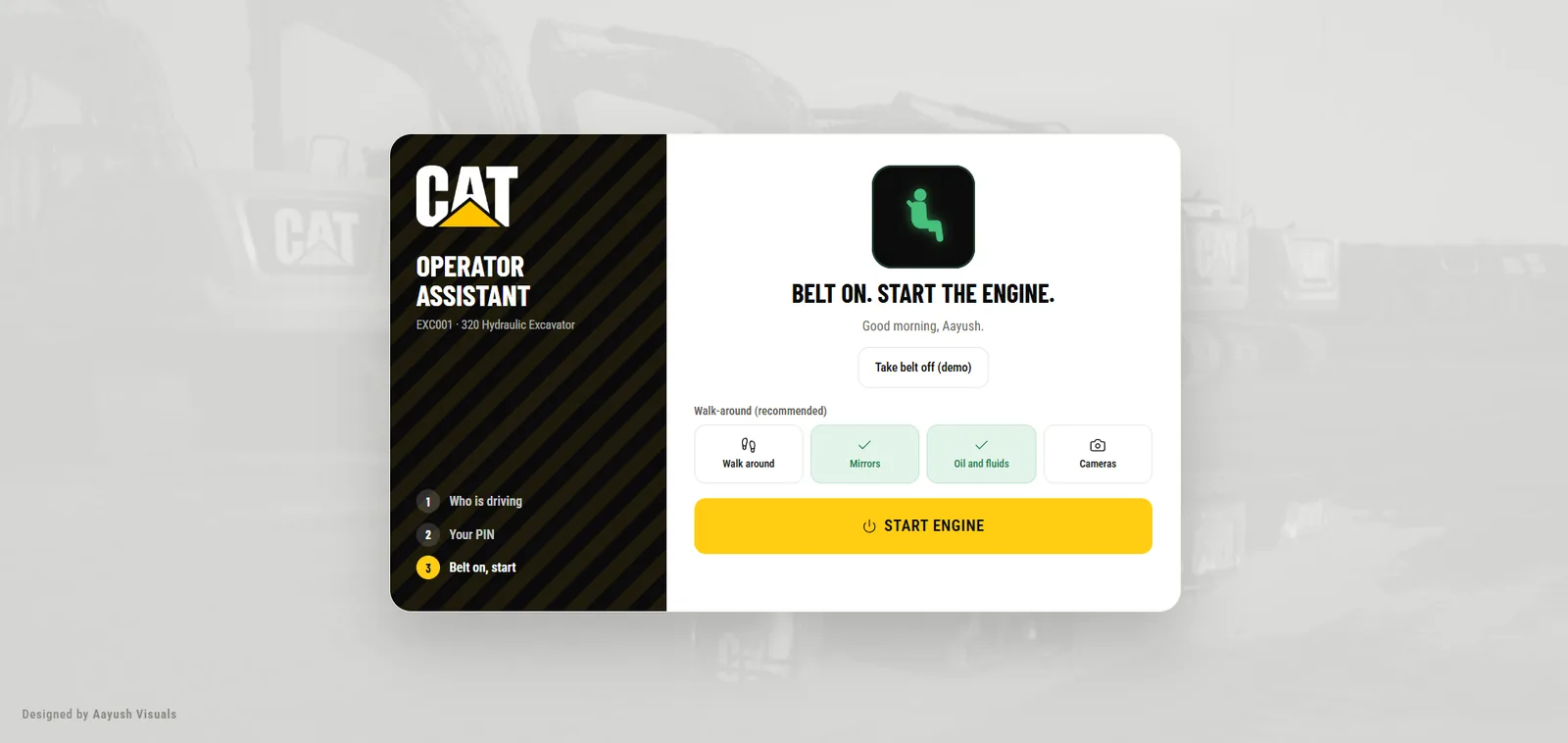
The engine stays locked until the seatbelt is on, and a blocked start is logged as a safety event. An optional walk-around checklist covers mirrors, fluids and cameras before the engine starts.
The belt is monitored all shift. If it comes off during a wait, the screen warns the operator before the machine moves again, so the fleet owner gets a guarantee rather than a policy.
(04)
(Home)
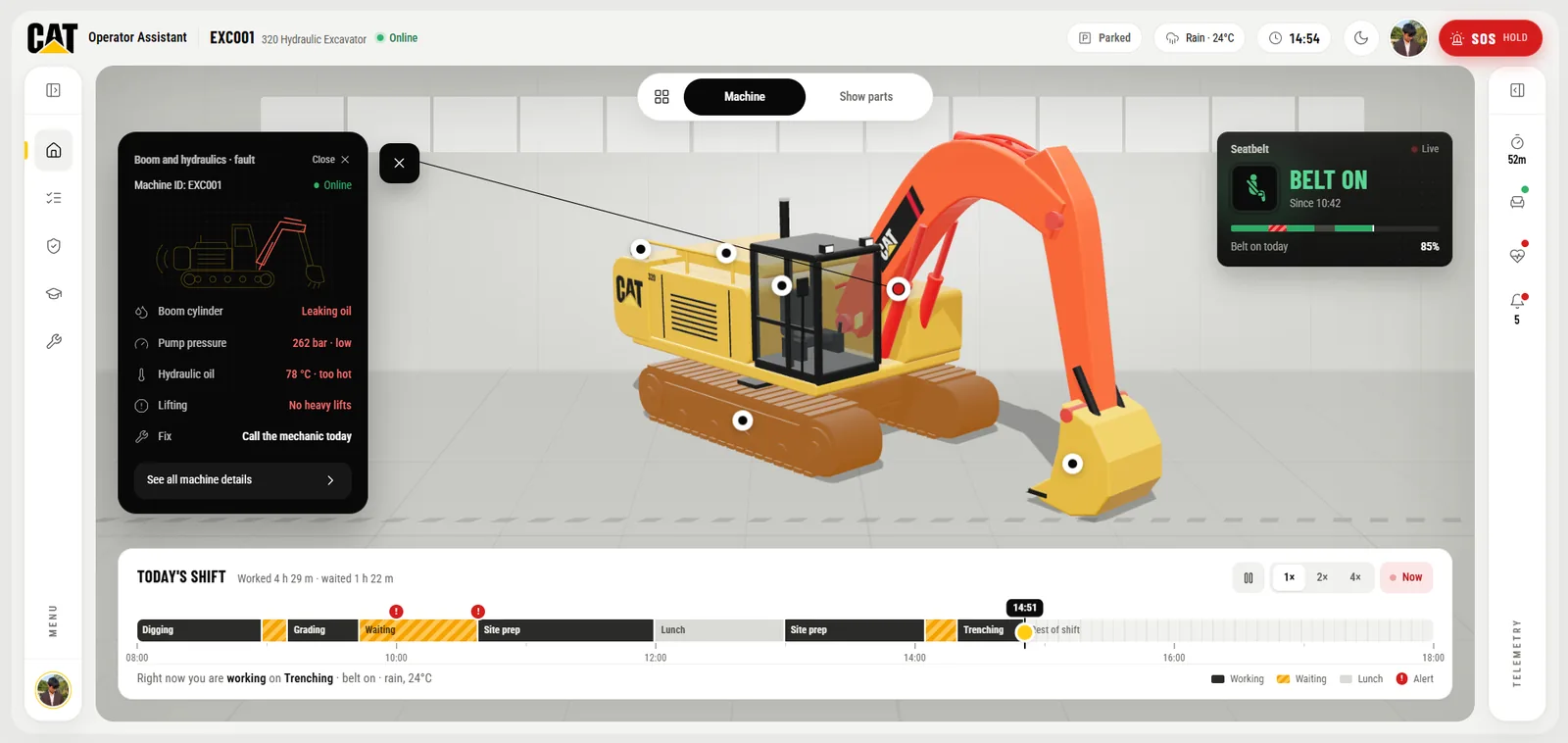
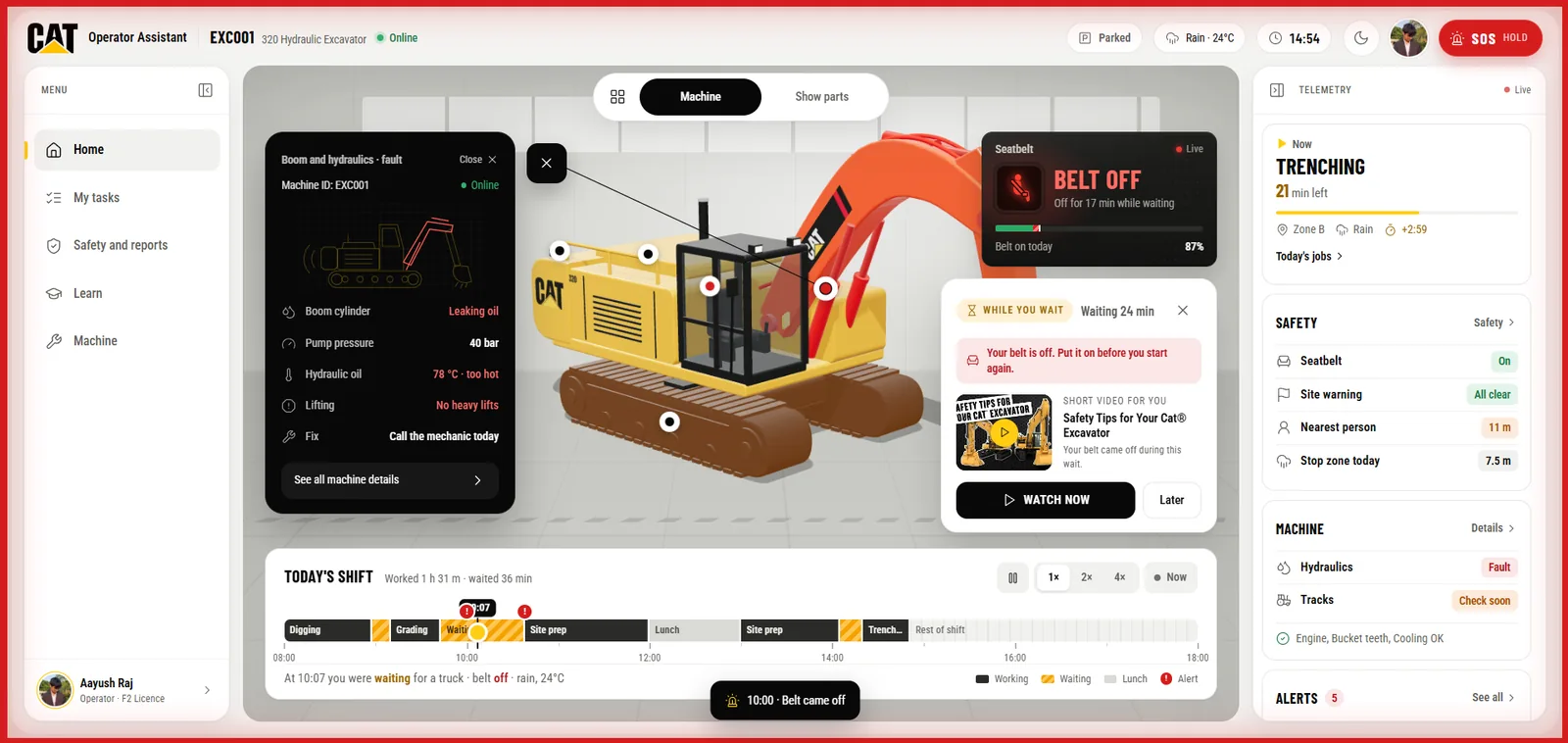
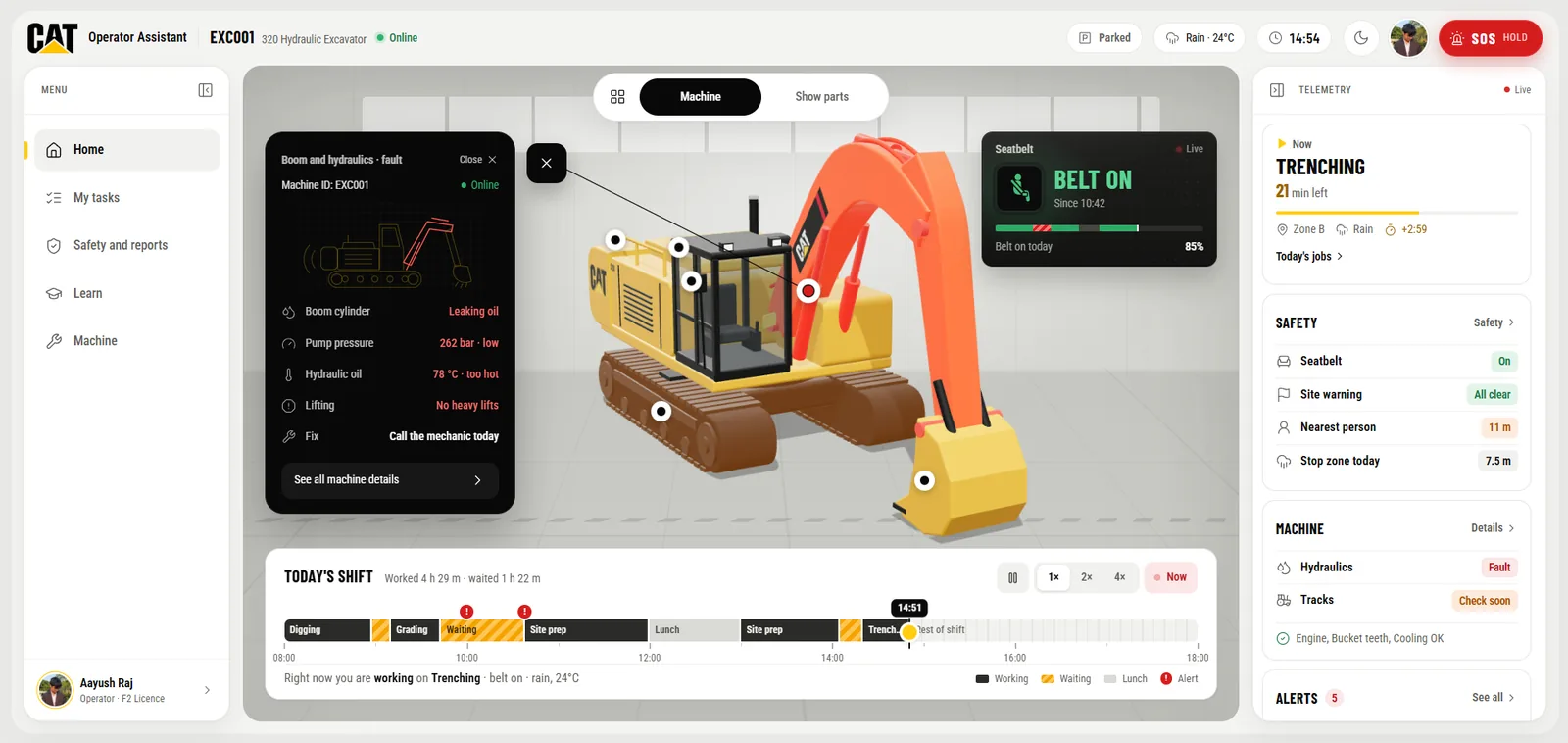
The home screen answers three questions at a glance: am I on pace, is the machine safe, and what's next?
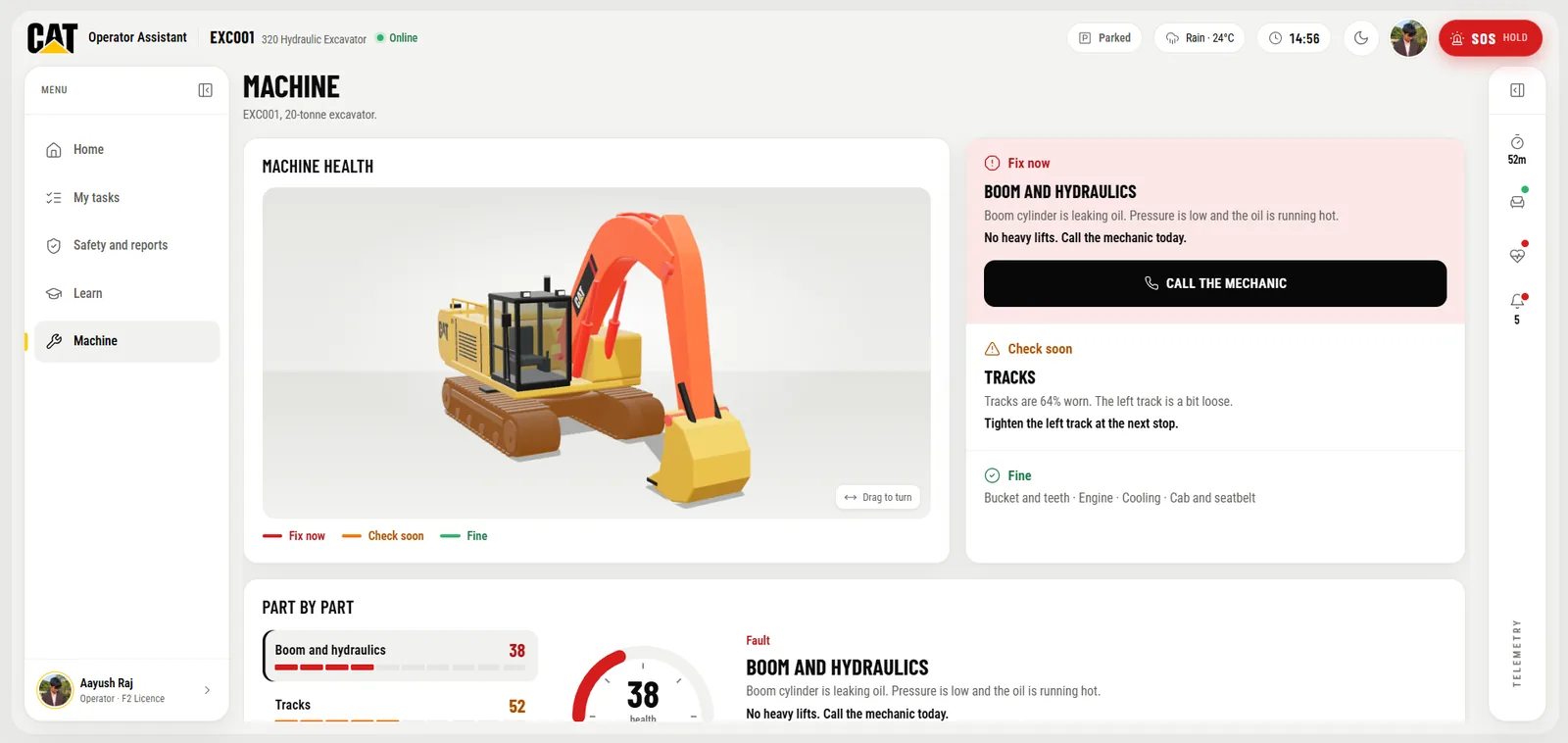
A 3D machine view instead of a sensor table
The excavator is drawn live in 3D and color-coded by condition: red for a fault, amber for check soon, green for the part you selected. Six tappable hotspots open each part's detail card.
Around it sit the operator's pace against their own best time, a live seatbelt card and a timeline of the whole shift. After three minutes of idle time, a short training video appears.
(05)
(My tasks)
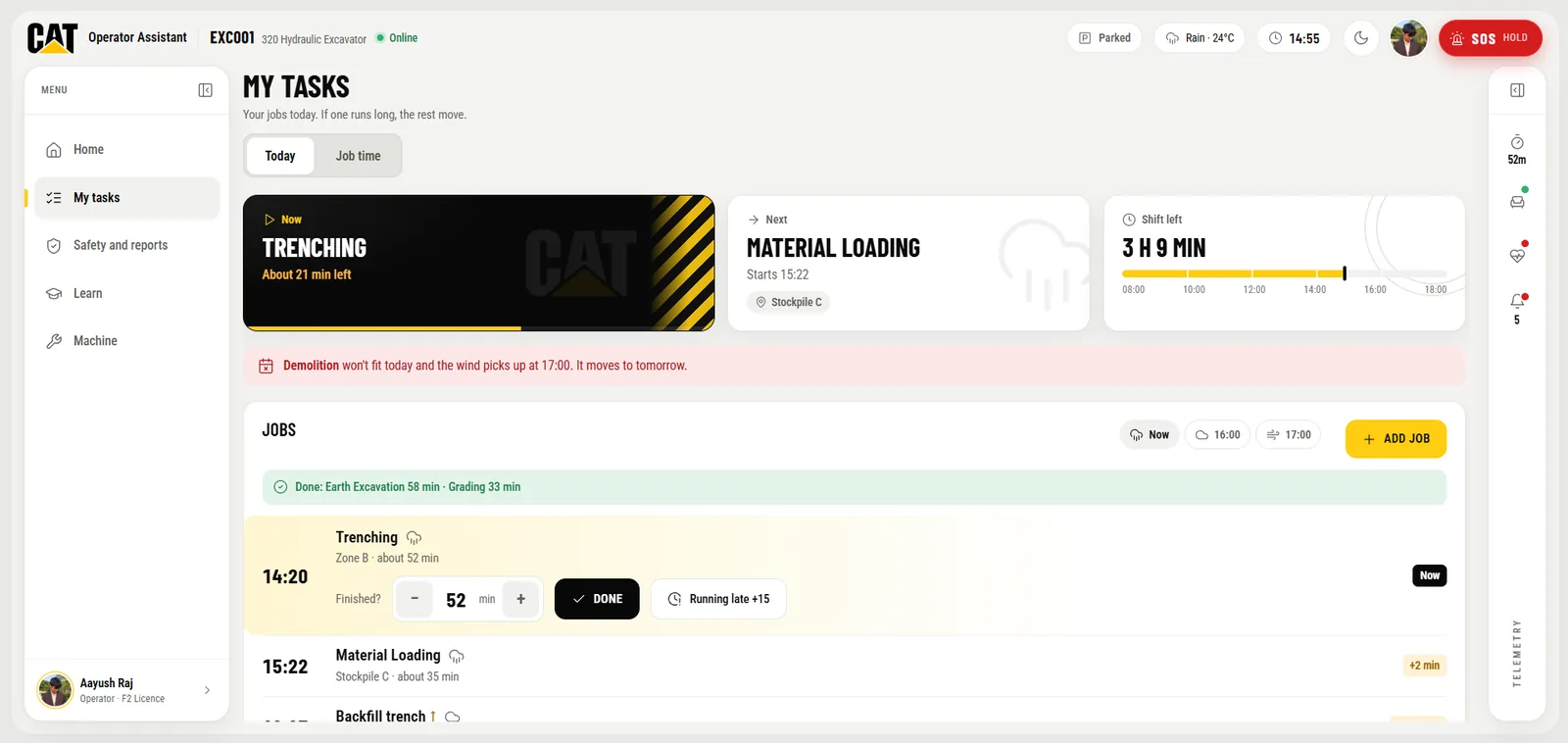
A daily task board that replans itself when the day changes.
A job list that replans itself
Now, Next and Shift-left tiles sit above the job list, with one-tap Mark done and Running late (+15 min) buttons. The plan also checks the forecast and moves wind-sensitive work, like demolition, to another day.
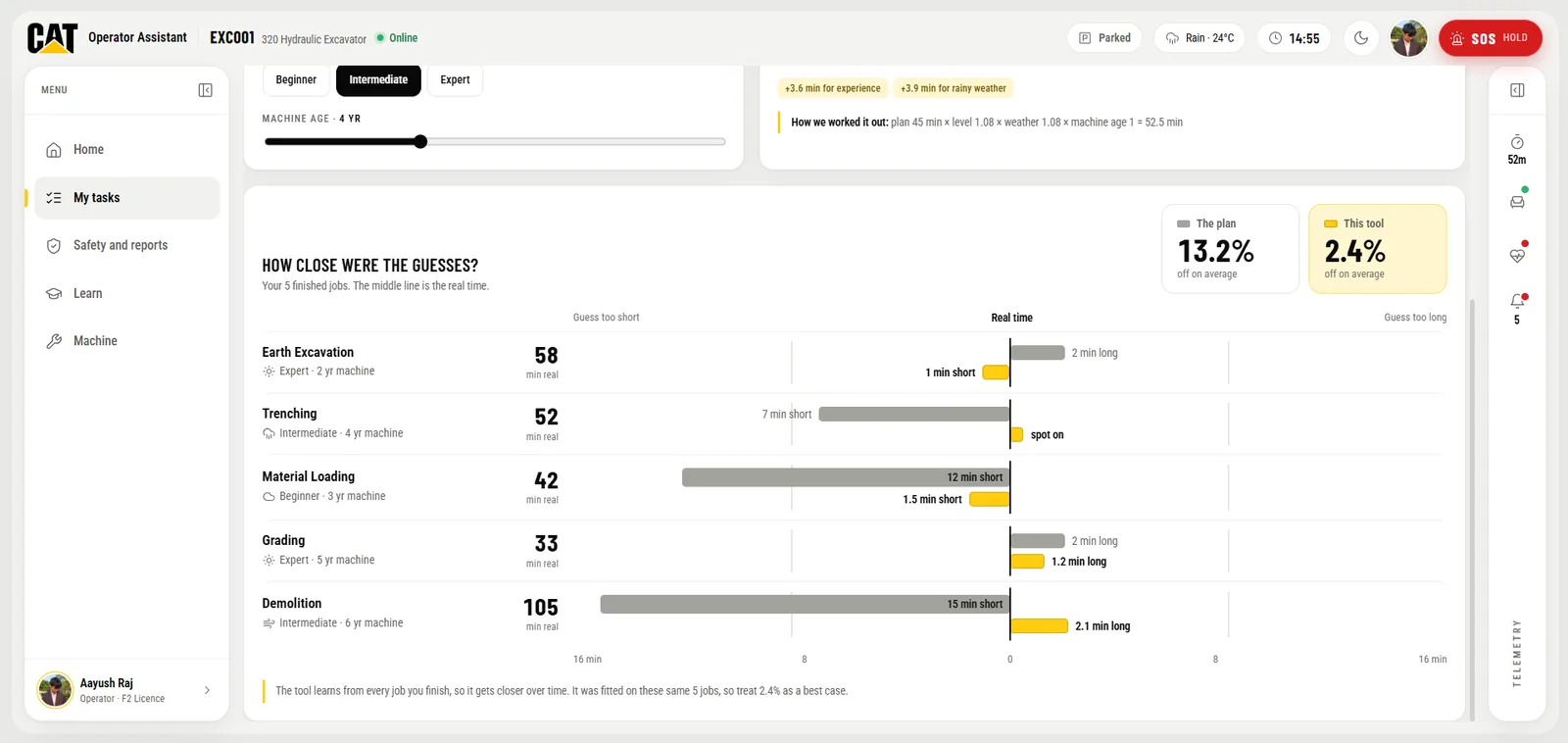
The Job time tab estimates how long a job should take from the job type, weather, operator skill and machine age. It shows a time range instead of one number, next to how accurate past estimates were.
(06)
(Safety and reports)
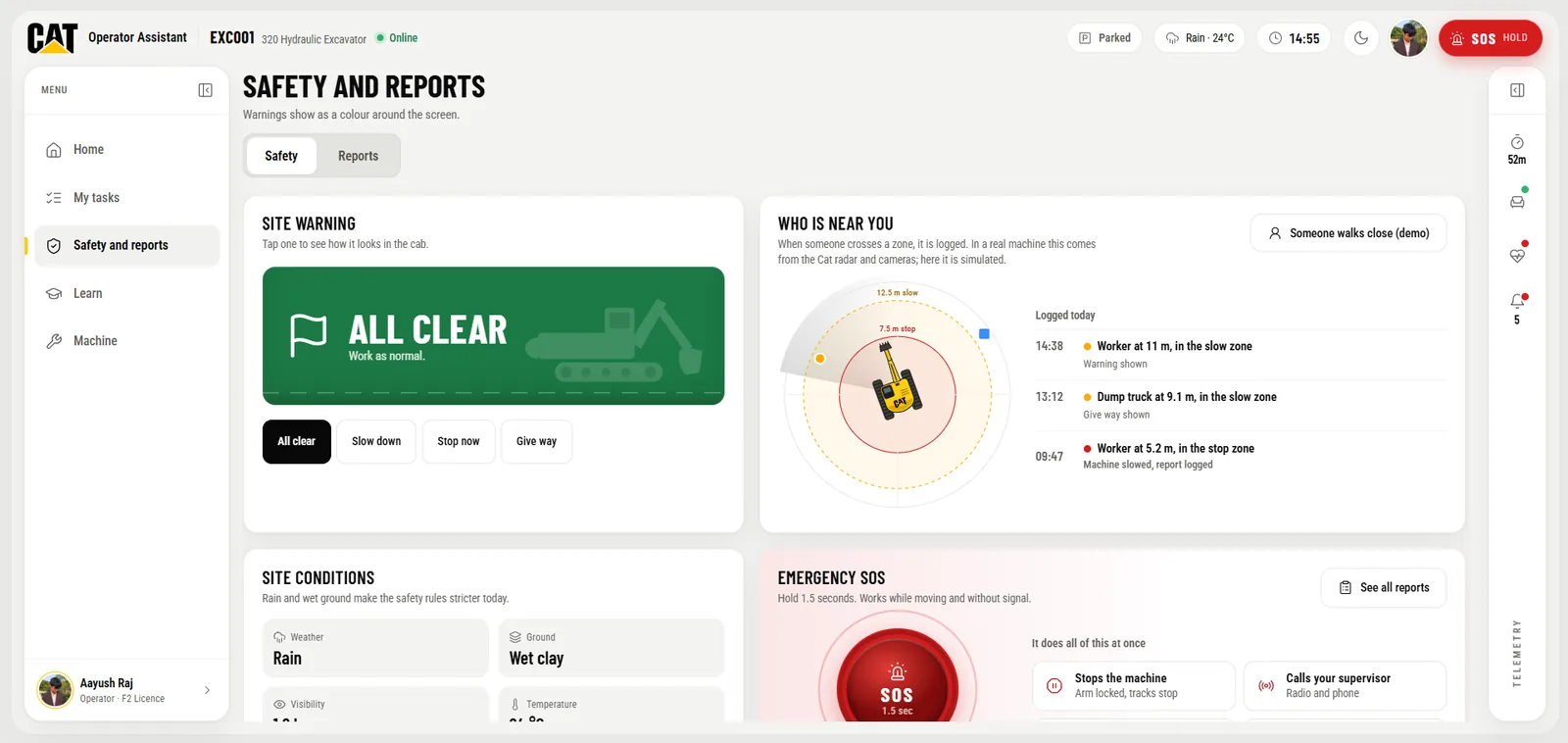
Safety features built for the worst moment on site, including when there is no signal.
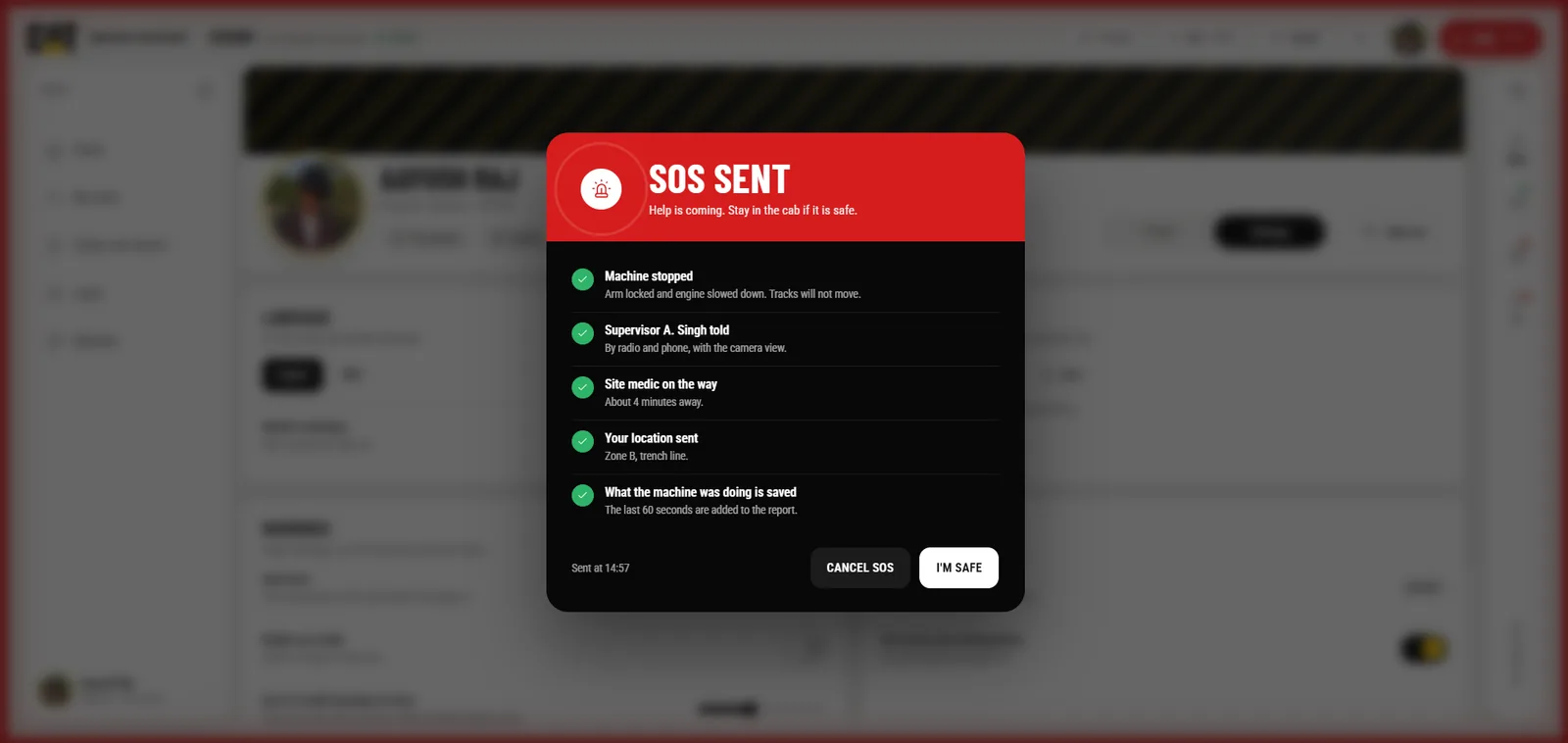
Proximity alerts and one-hold SOS
Site warnings light the edges of the whole screen. A top-down proximity radar shows people and vehicles near the machine and logs every zone crossing. In rain, the stop zone grows from 6 m to 7.5 m and the slow zone from 10 m to 12.5 m.
Holding SOS for 1.5 seconds stops the machine, alerts the supervisor and saves the last 60 seconds of machine data. An incident report takes a hold and two taps, and saves to the tablet with a machine snapshot until signal returns.
(07)
(Learn)
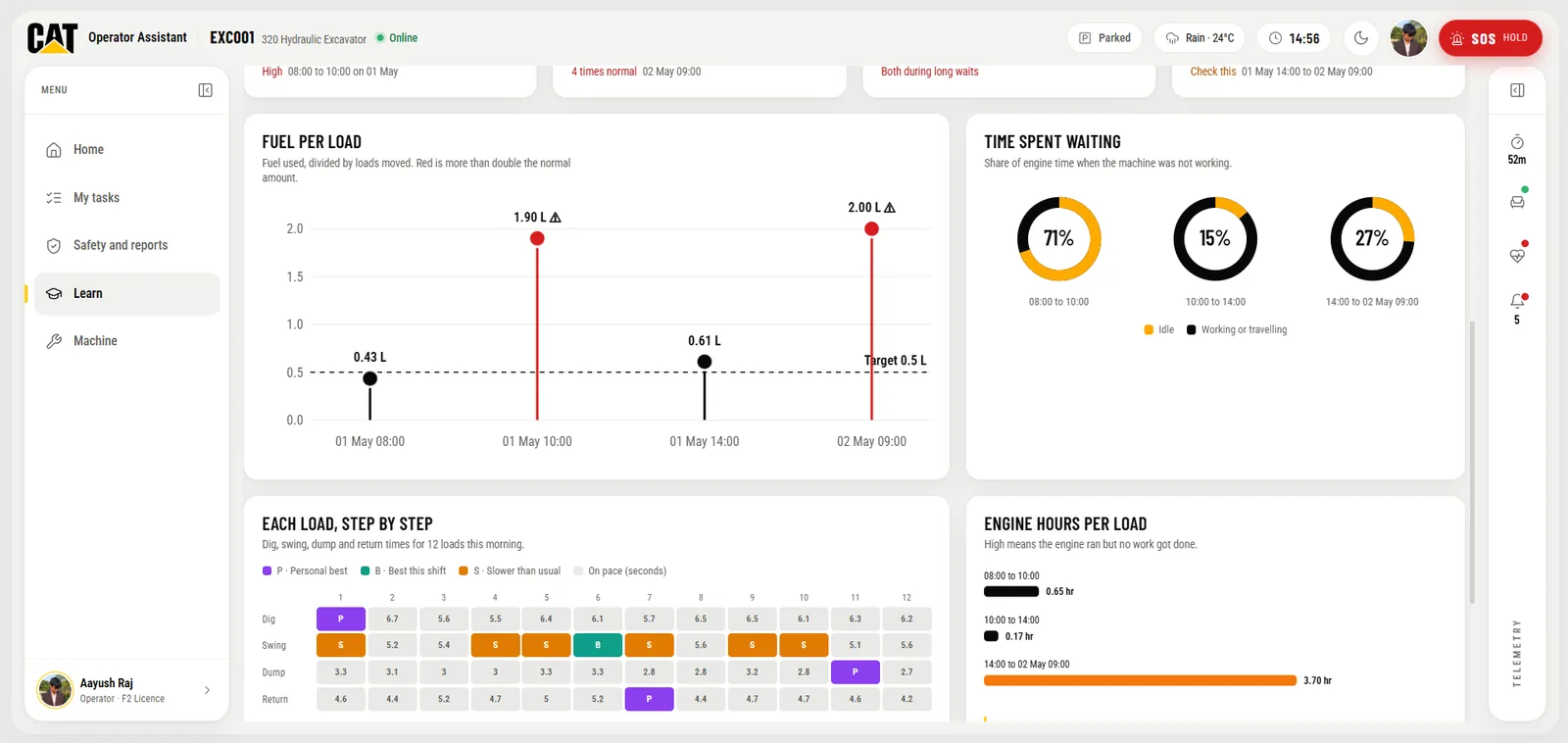
Training based on each operator's own shifts, not one module for everyone.
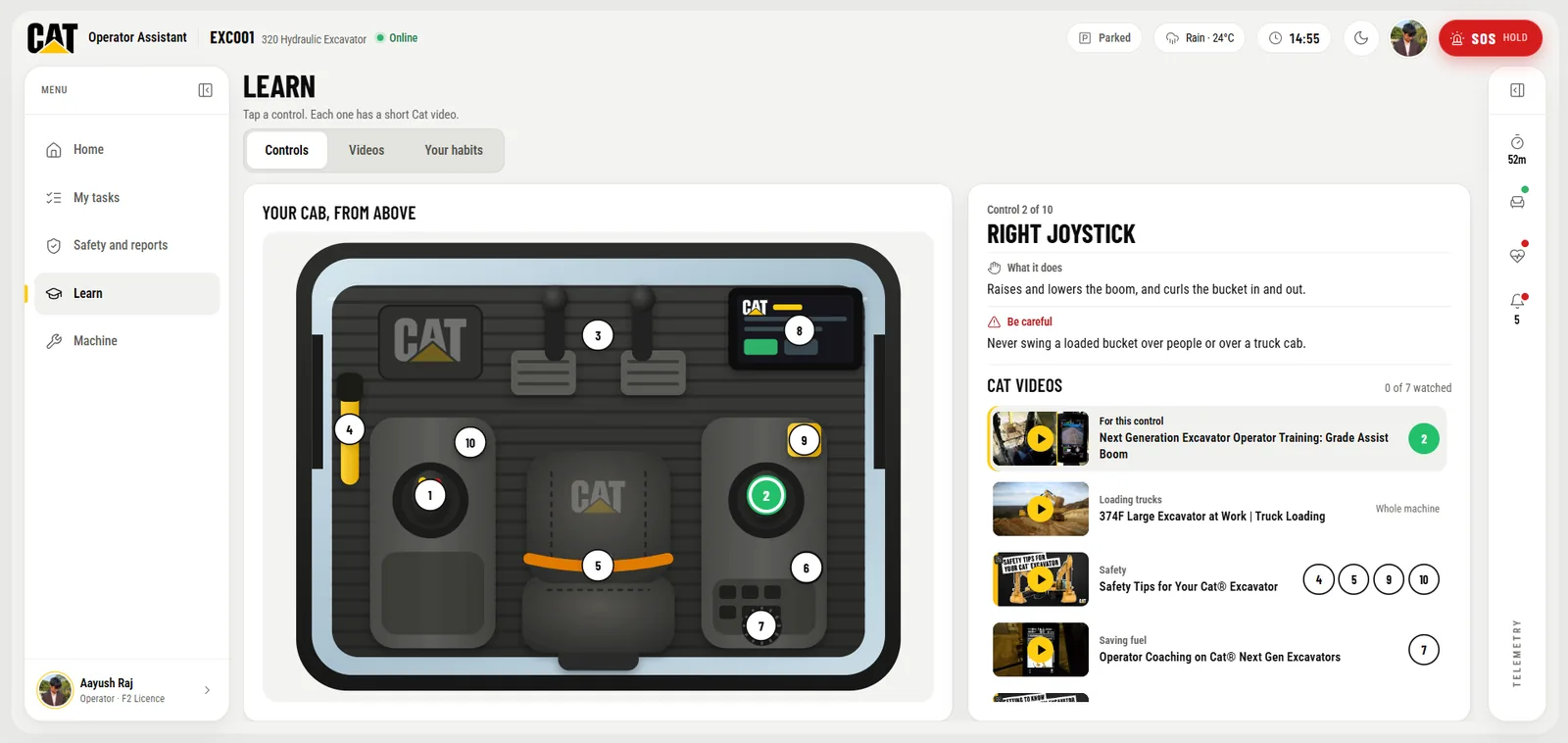
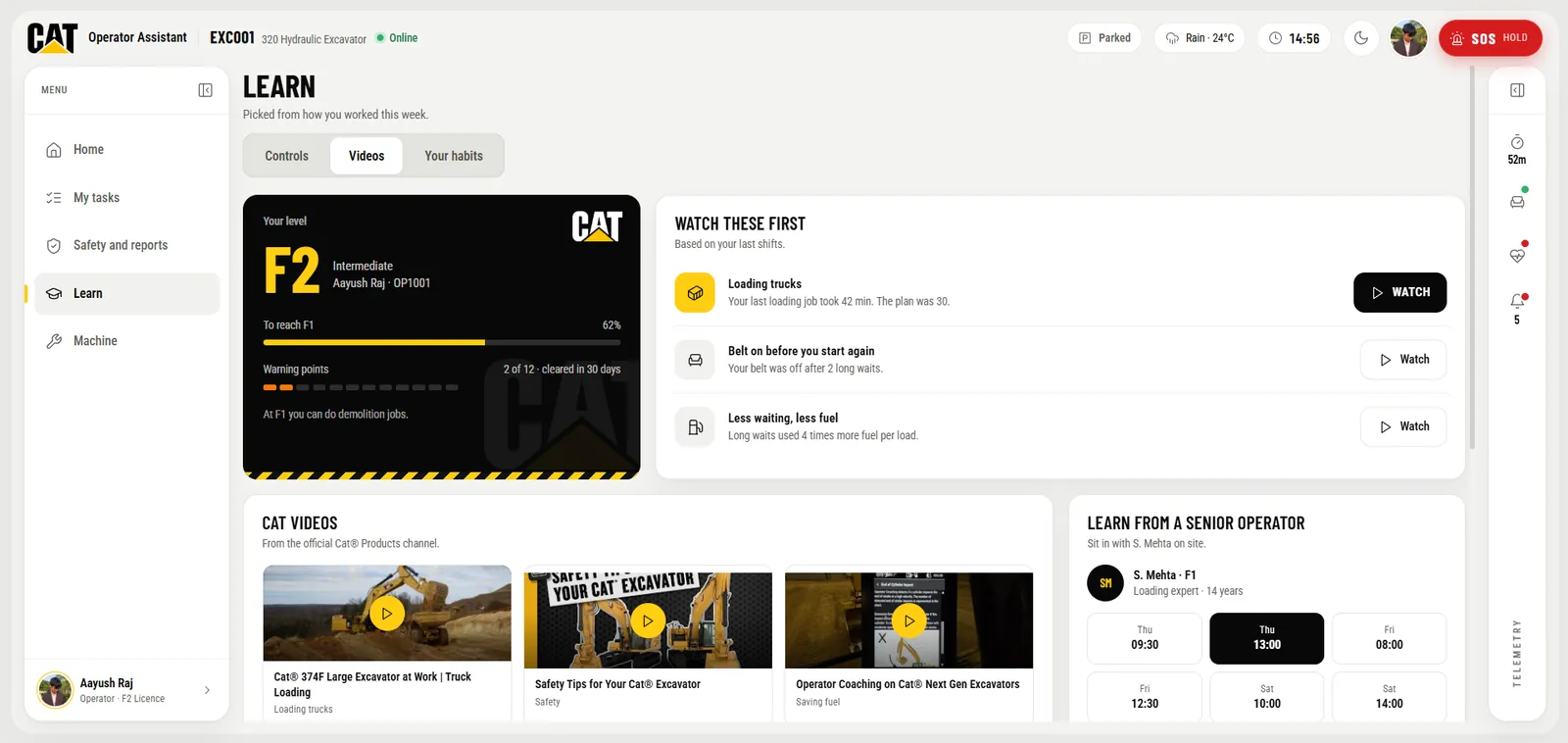
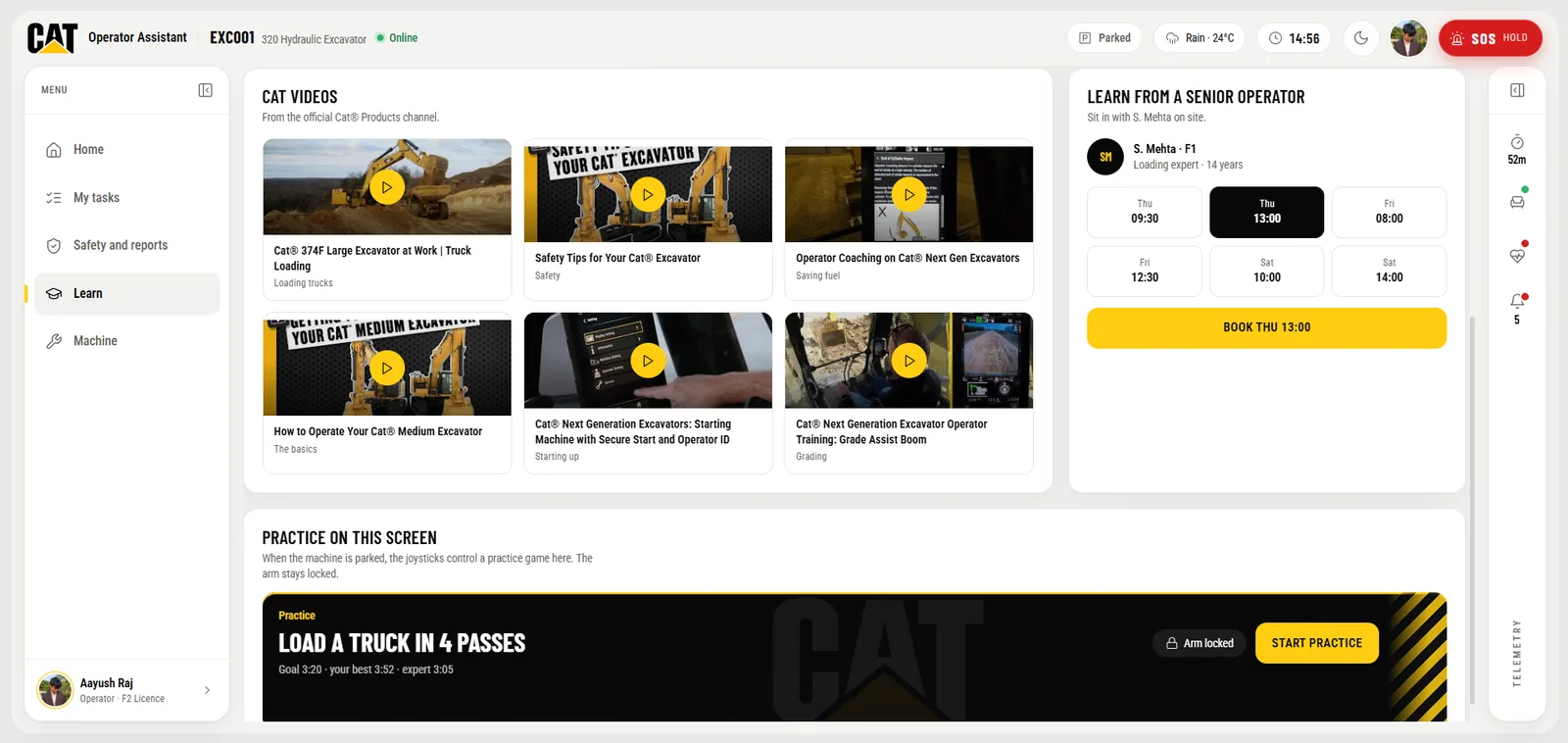
Controls and videos, picked for this operator
A top-down cab diagram numbers ten controls, including the emergency stop and horn, each linked to an official CAT training video. Seven videos are ranked by what this operator's recent shifts show they struggle with, such as long waits or starting without a belt.
The fleet owner spends less on general training, and operators fix their specific gaps faster.
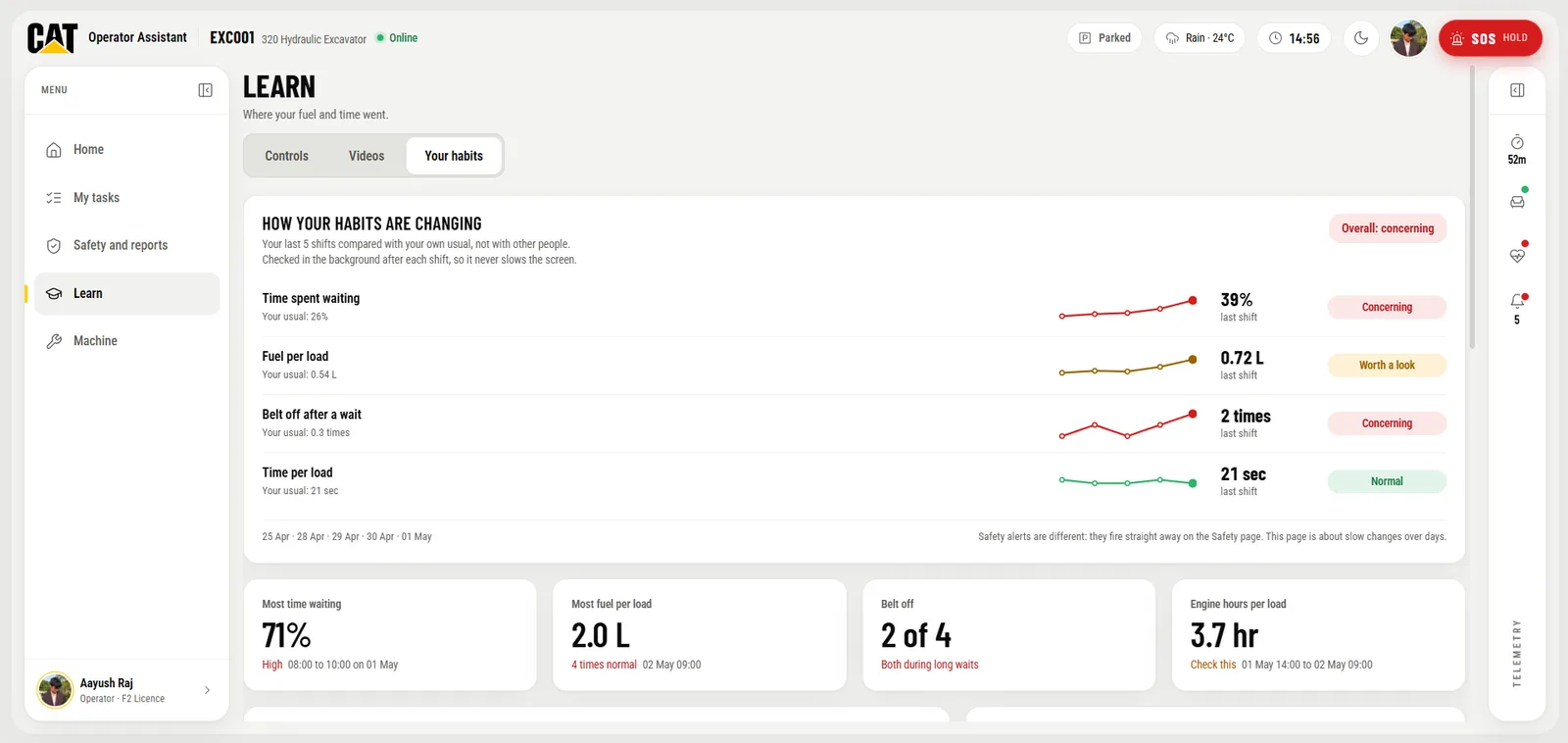
Habits against their own baseline
Five-shift trend lines track waiting time, fuel per load and seatbelt removals. Each one is compared with the operator's own usual numbers, not with other people.
(08)
(Machine)
Condition monitoring that flags problems before they become breakdowns.
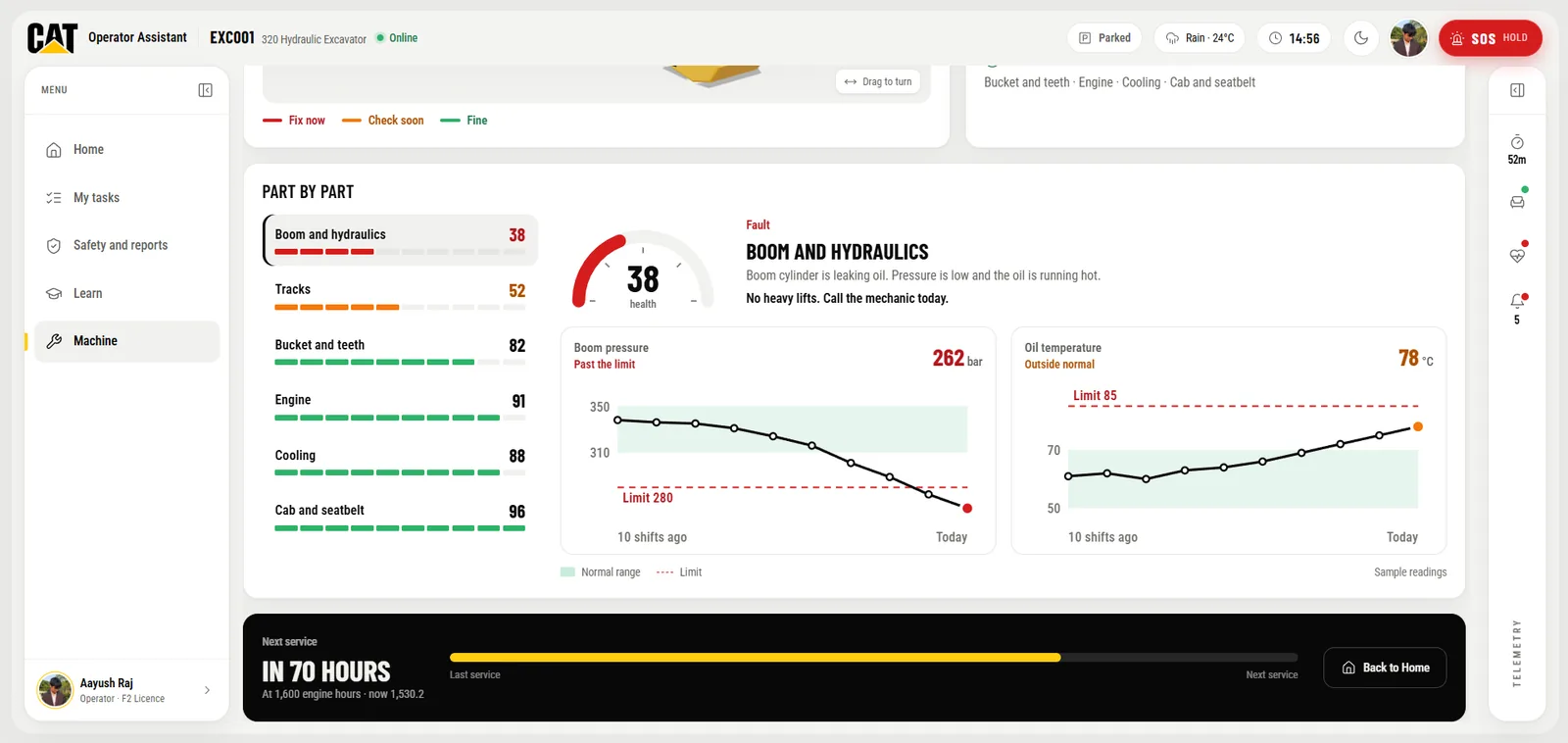
Part-by-part health scores
Every issue is sorted into Fix now, Check soon or Fine, with a one-tap Call the mechanic for the most urgent fault and a countdown to the next service in engine hours.
Boom, tracks, bucket, engine, cooling and cab each get a 0 to 100 health score and two sensor charts over the last ten shifts, drawn against a normal range and a limit line. A repair call becomes a decision backed by data.
(09)
(Fleet view)
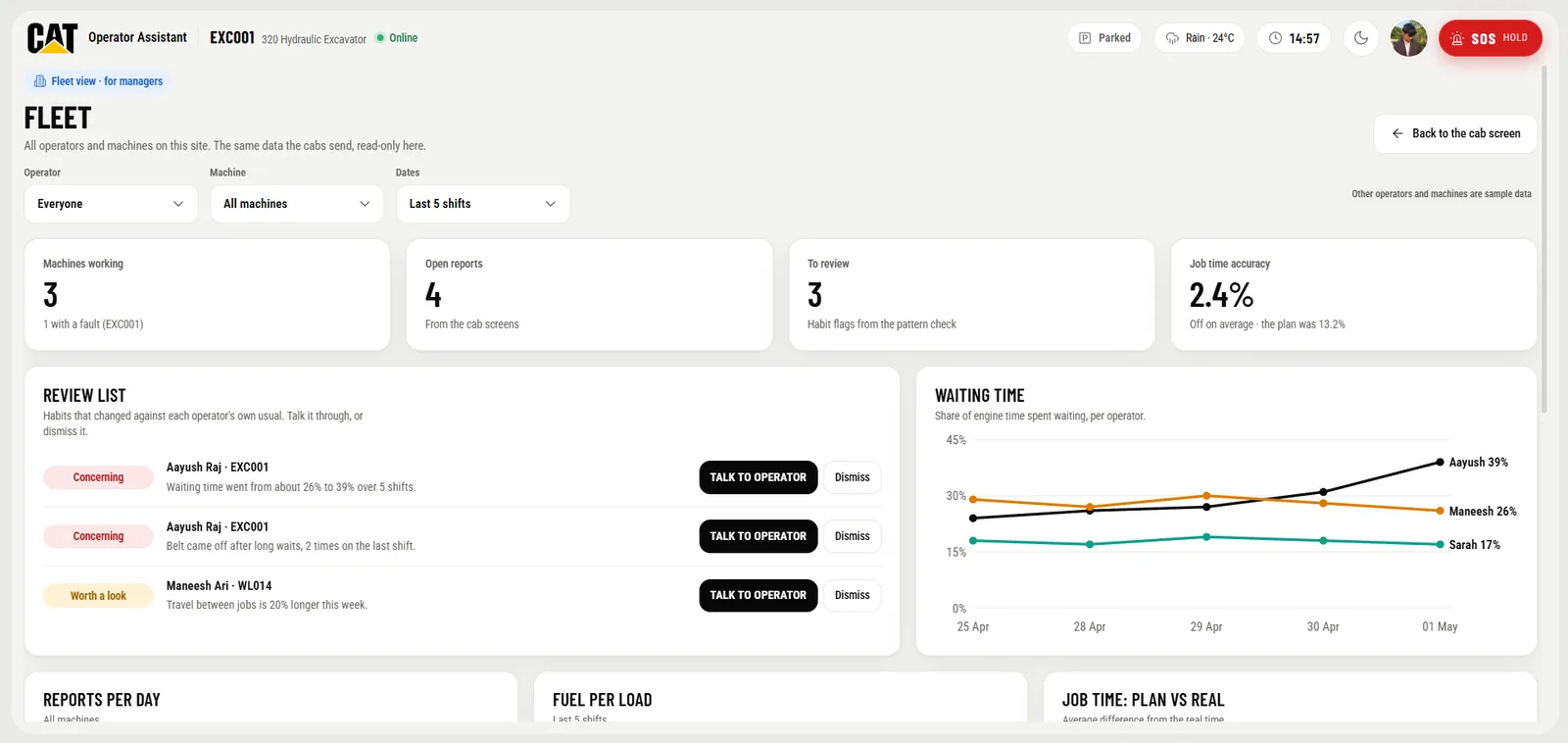
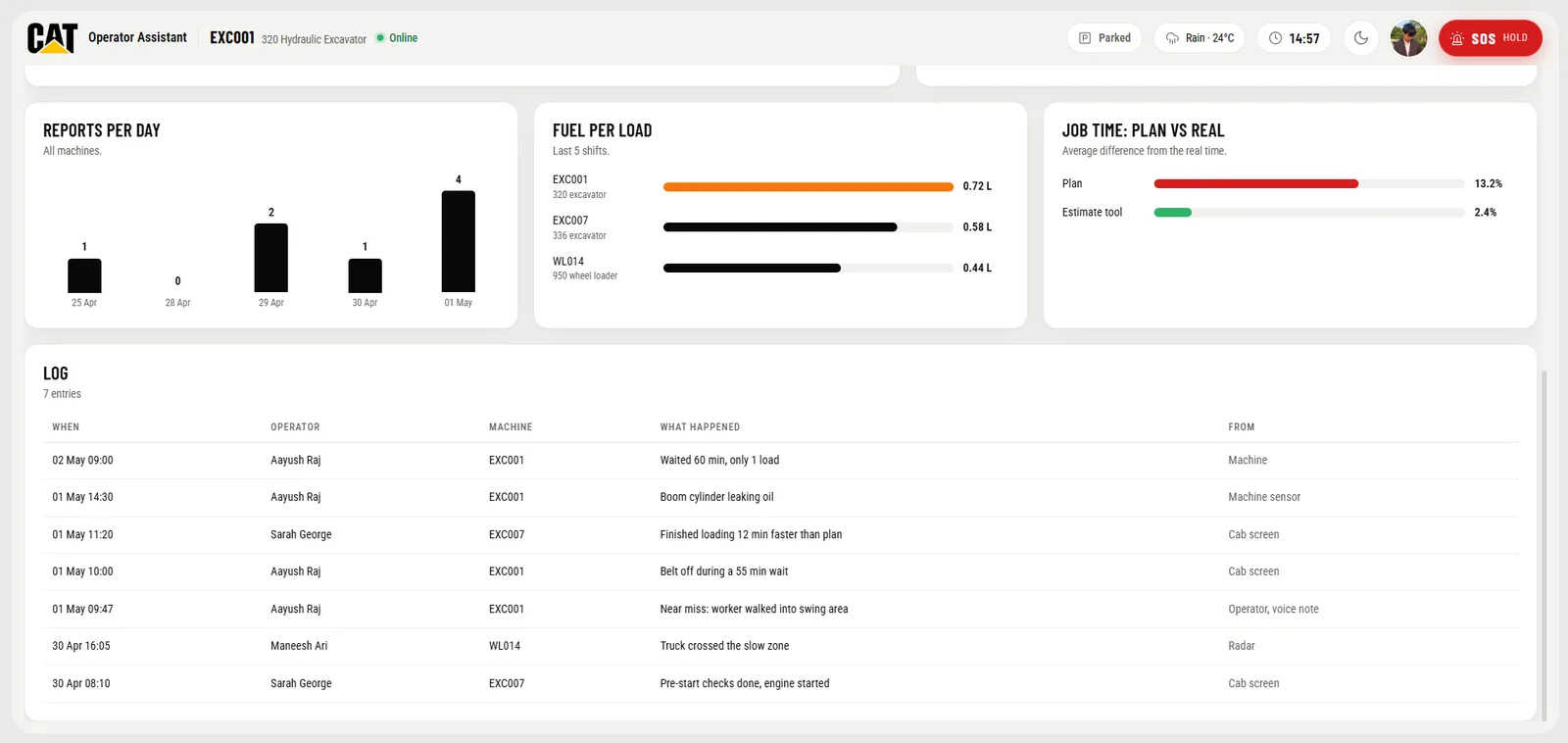
A read-only view for fleet managers, built on the same data the cab tablets send.
Who needs attention today
Managers filter by operator, machine and date. A review list flags habit changes for each operator, with one-tap Talk to operator or Dismiss.
Below that sit waiting-time trends per operator, fuel per load per machine, planned versus actual job times, and the full incident log.
(10)
(Across every screen)
The details that make it usable in a real cab, on every screen.
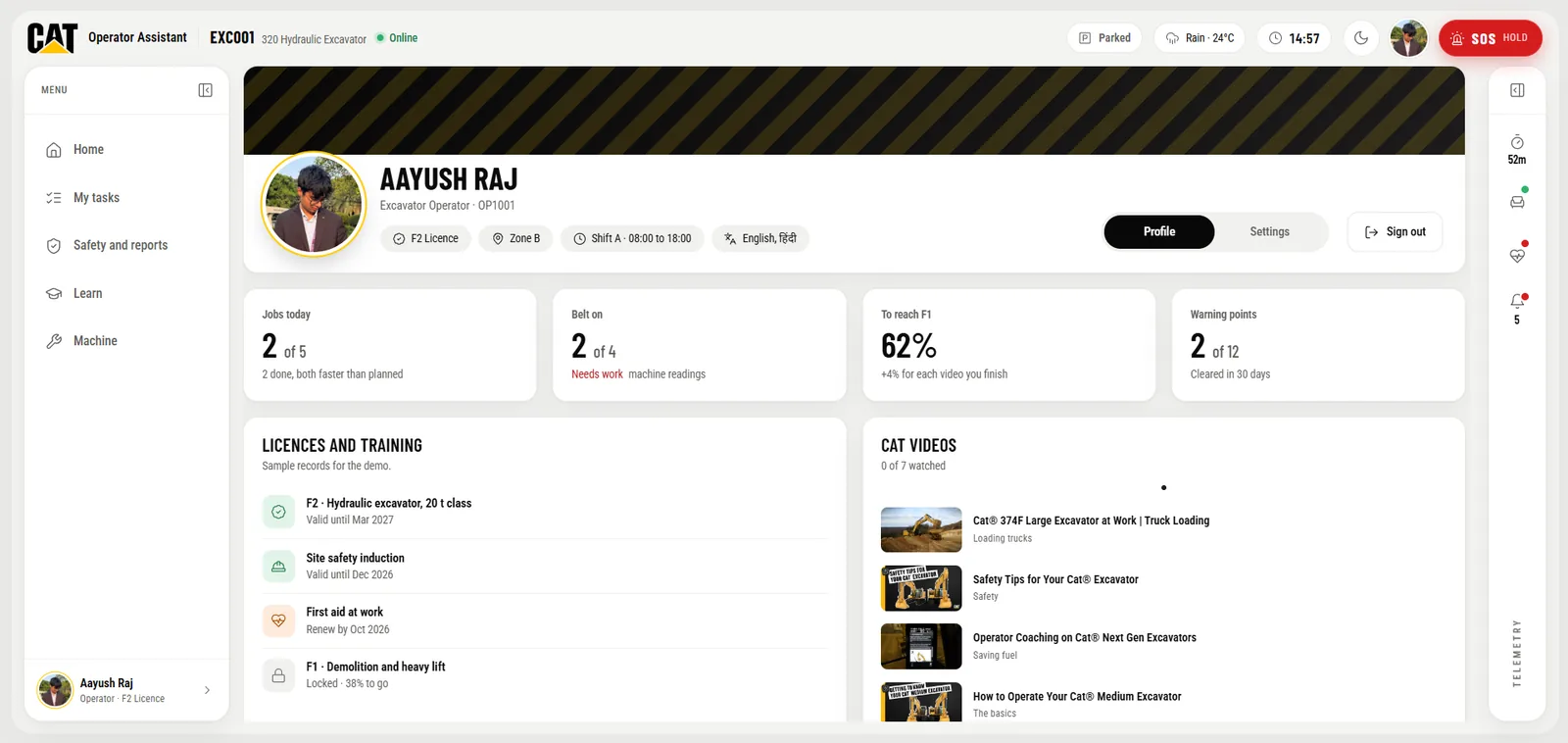
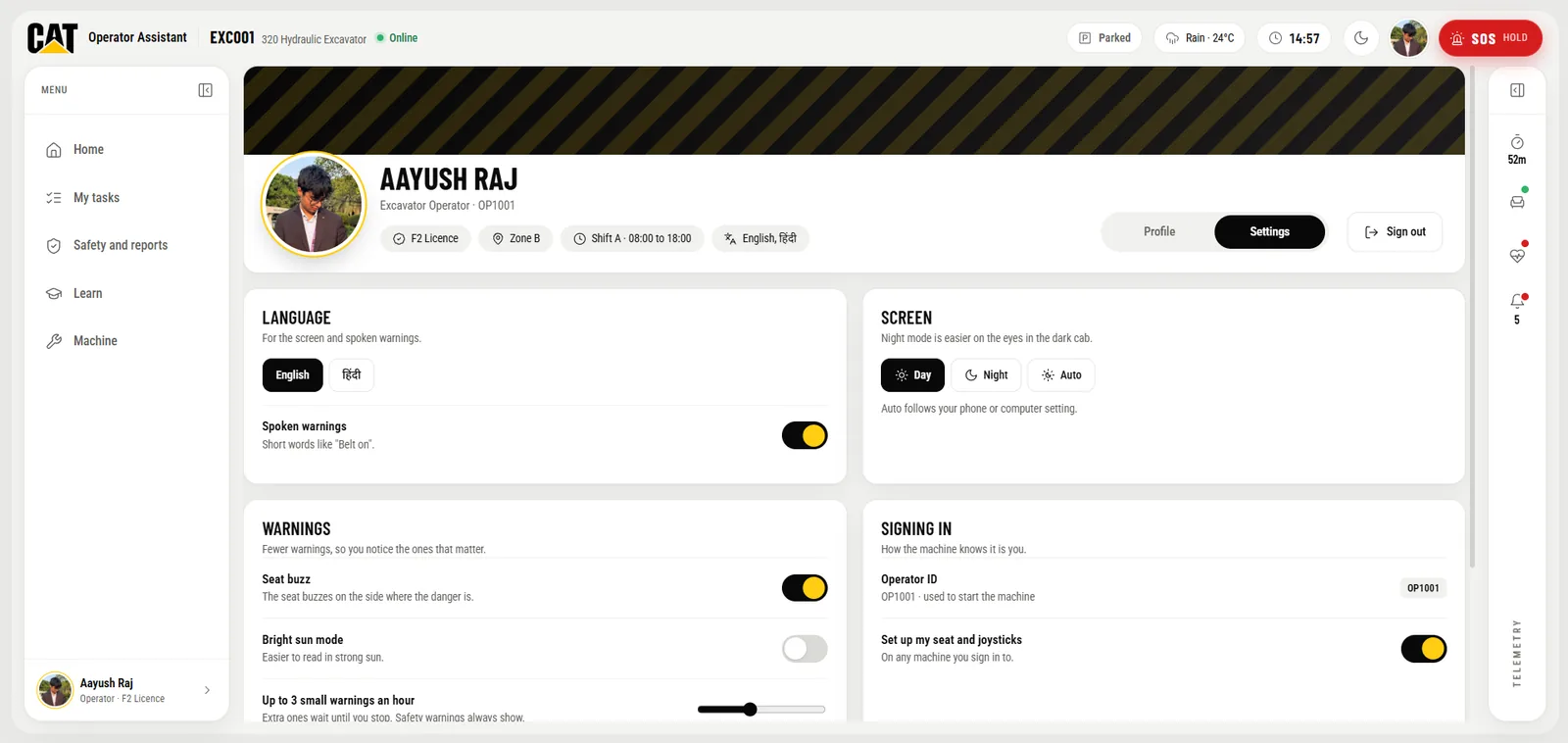
Built around one operator
Profile shows the operator's license progress and warning points. Settings controls language, spoken warnings, screen mode and warning volume for that cab only.
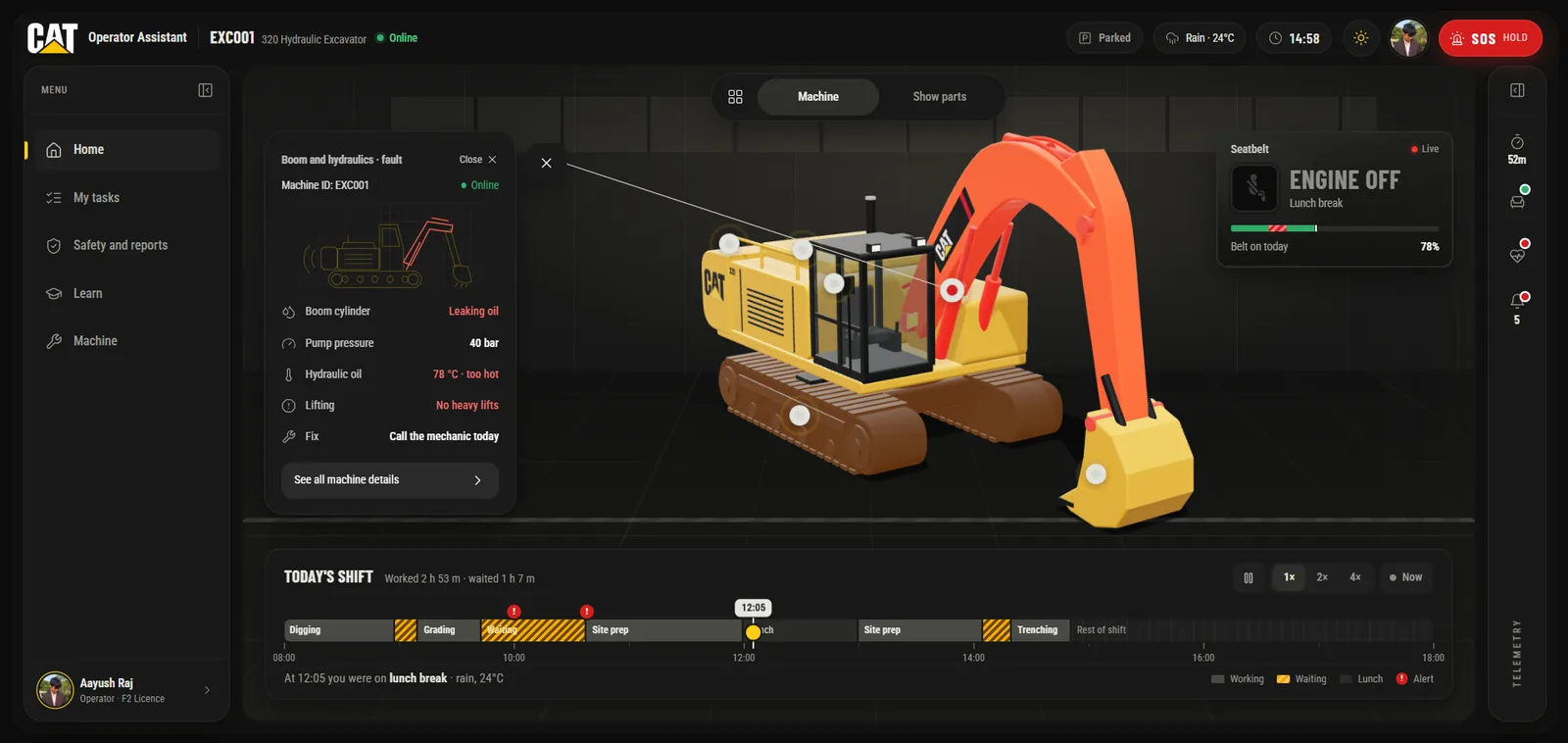
Night mode, a driving lock and no signal
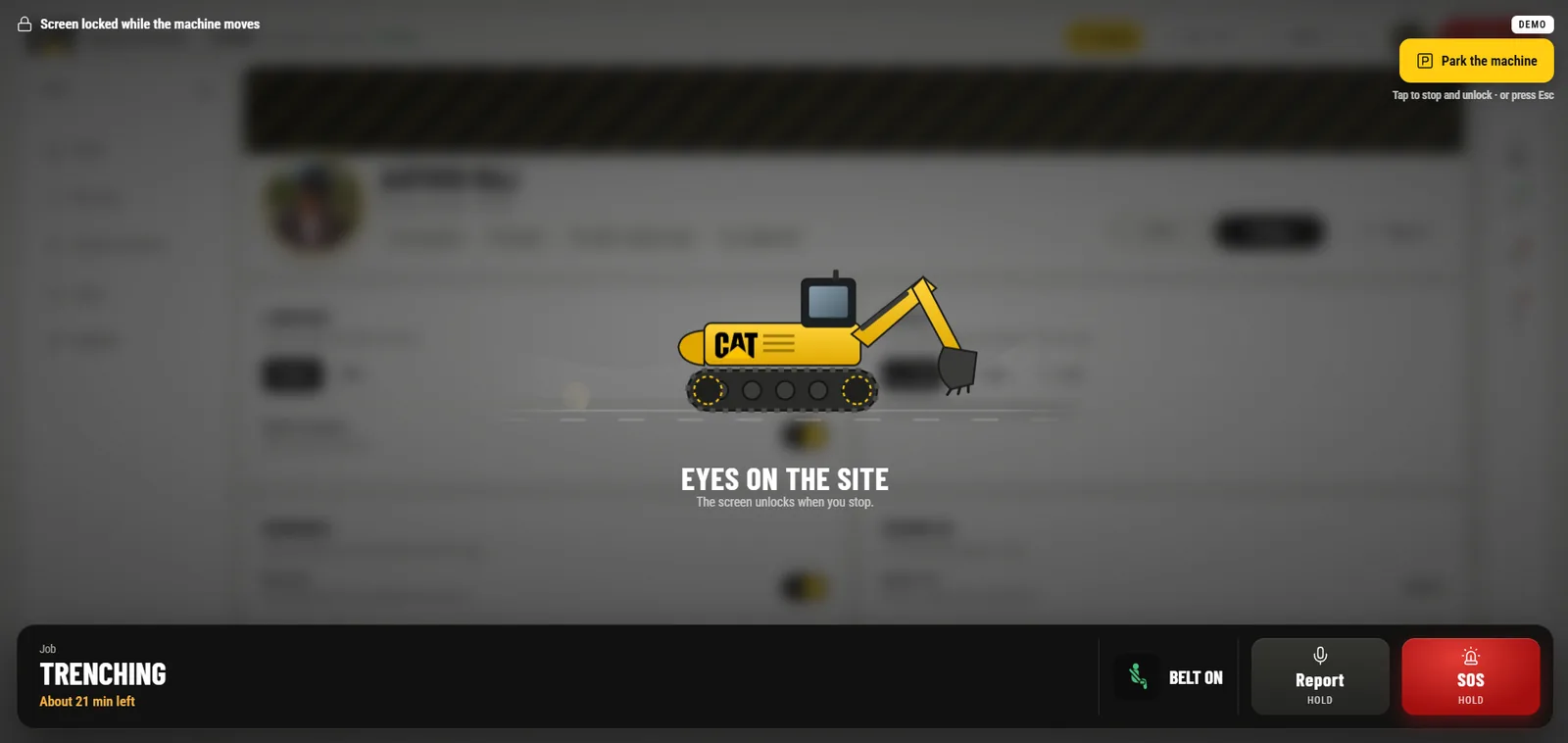
Night mode uses a layered dark palette instead of inverted colors, to cut glare in a dark cab. While the machine moves, every screen locks to a simple strip with the current job, belt status, Report and SOS, so the operator's eyes stay on the site.
The interface switches between English and Hindi, and touch targets are sized for gloved hands. Everything is offline-first: it saves to the tablet and syncs when signal returns.
(11)
(What was hard to build)
Four problems took most of the build time.
A 3D machine with no model file
There was no model to download, so the excavator is generated in code. Each part is tagged separately, so a boom fault or worn track can turn just that part red or amber in real time.
An estimator that is honest about itself
The estimator had to beat a fixed plan fairly. Its 2.4% error was measured on the same five tasks it learned from, and the app says so instead of hiding it.
Designed for the cab, not for a demo
Every screen had to feel like something a gloved operator would really tap on site. The first drafts looked like a generic AI dashboard with tinted cards, so they were thrown out.
Safety with no signal
Reports save to the tablet first and sync later. The seatbelt interlock has to match the engine lock state at the exact moment a report is filed.
(12)
(What's next)
Where it could go next. Ideas, not a committed roadmap.
Works fully offline
Make it an installable app (a PWA) that stores the whole shift screen on the tablet, so it works from a cold start with zero signal.
Real motion detection
Replace the demo Parked and Moving switch with the tablet's own motion sensors, so the lock responds to a machine that is really moving.
Live fleet updates
Push updates to the fleet view in real time instead of refreshing on a timer, so a manager sees a belt come off the moment it happens.
Voice-first reports
An operator mid-task has gloves on and a joystick in each hand. Saying "Hey CAT, report a near miss" fits that moment better than tapping.
Part health on the machine itself
An AR overlay through a phone camera that shows each part's health on the real excavator during a walk-around.
An estimator trained on a real fleet
Train the estimator on a real fleet's history instead of five tasks, and show a confidence range so operators learn how sure the model is.
A shared component library
Turn the buttons, cards, gauges, radar and seatbelt icon into a documented component library, so the next build starts from design tokens instead of from scratch.
(13)
(Results)
Measured on the same five tasks the estimator learned from, and the app says so on screen.
(14)
(More Work)

Got something in mind?
A job, a project, a wild idea. Whatever it is, drop me a message. Let’s see what we can make out of it.
- Looking for my next opportunity
- Open to freelance work
- Always happy to talk design